
Ideas for better growth
Site Search Optimization for Online Stores
Chris Content · · 5 min read

Visitors who search convert far better than those who browse. How to fix no-result queries, handle synonyms and misspellings, and mine search data for gaps.
Visitors who use site search are among the highest-intent people on a store: they know what they want and they are trying to find it. They also convert at a substantially higher rate than browsers on most sites.
Which makes it strange that site search is usually the least maintained feature on the whole site.
Step 1: Turn on the logging
You cannot improve what you cannot see. Make sure your analytics records:
- Every search term
- The number of results returned
- Whether the visitor clicked a result
- Whether they searched again immediately
- Whether the session converted
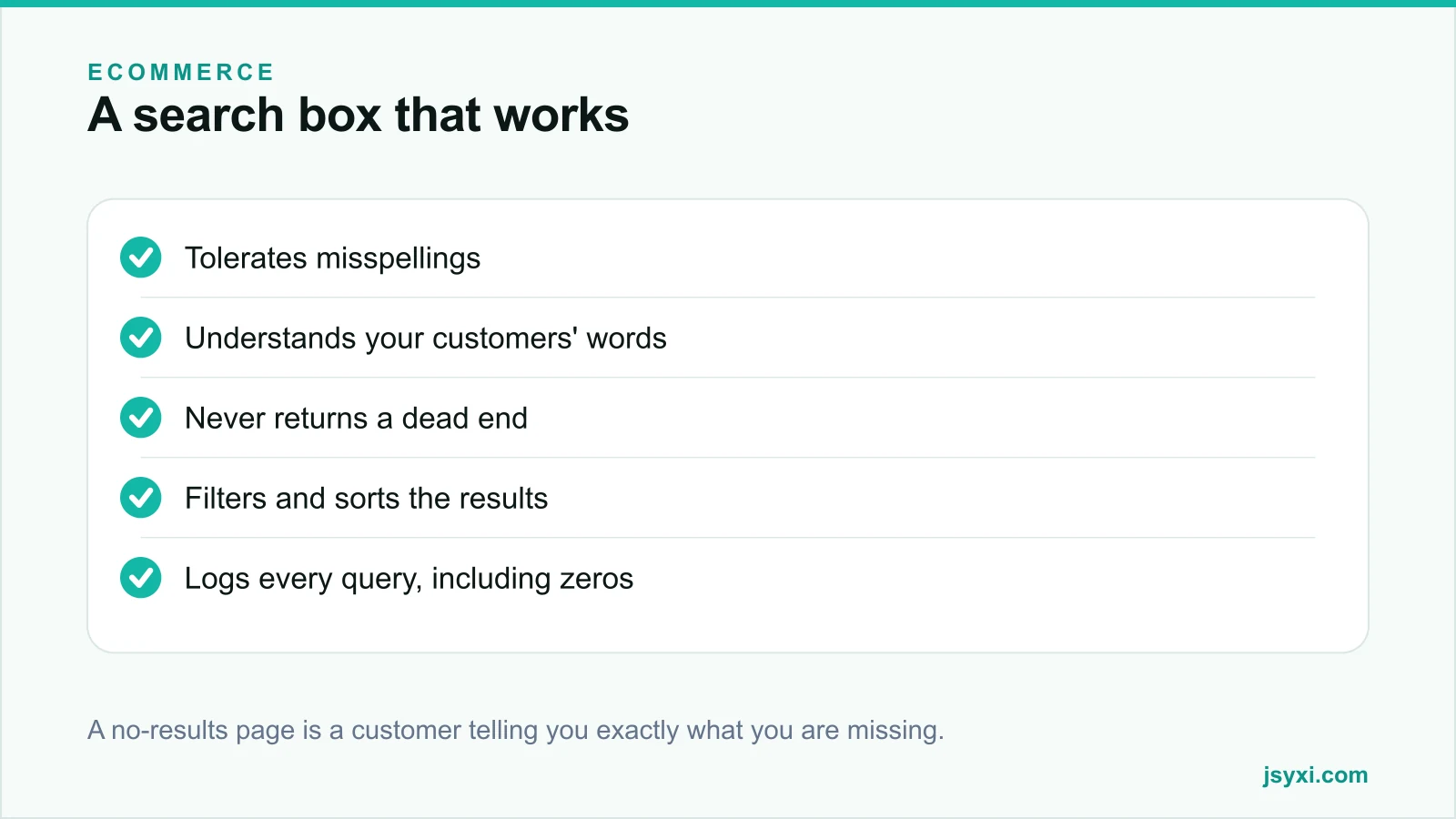
The single most valuable report is queries returning zero results. Each one is a customer telling you, in their own words, what they expected to find and did not.
Step 2: Fix the no-results queries first
Group them into four causes, each with a different fix:
- You sell it, but call it something else. Add the customer's word as a synonym.
- You sell it, but the search cannot find it. A matching or indexing problem.
- You do not sell it, but should. A product gap.
- You do not sell it and will not. Redirect to the closest alternative rather than a dead end.
Working through a month of zero-result queries usually takes an afternoon and fixes a surprising share of lost sessions.
Step 3: Handle misspellings and variants
People type quickly, on phones, sometimes in a second language:
- Fuzzy matching for near-miss spellings
- Synonyms mapping customer words to your product names - "cell phone" and "mobile", "kurti" and "kurta"
- Singular and plural treated the same
- Transliteration, where your customers type phonetically
- Ignore case, punctuation, and extra spaces
- Partial word matching, so "bluetooth speak" still finds speakers
Build the synonym list from your own zero-result log rather than guessing.
Step 4: Never return a dead end
A blank "no results found" page loses the visitor. An empty state should always offer a route forward:
- Say plainly that nothing matched
- Suggest a corrected spelling where you have one
- Show popular or related products
- Offer the closest category
- Offer a human route - a WhatsApp link with the query pre-filled works well
- Never show a blank area or an endless spinner
See microcopy that removes friction for how to write these states.
Step 5: Make the results usable
Finding results is half the job; choosing between them is the other half:
- Show a result count
- Provide filters that match the query context - size, price, availability
- Offer sensible sorting, with relevance as the default
- Show price, key variant, availability, and a meaningful image on each result card
- Keep out-of-stock items visible but clearly marked, rather than hidden
- Preserve the query when the visitor goes back from a product
Step 6: Use autocomplete carefully
Suggestions help when they are accurate and hurt when they are not:
- Suggest products and categories, not just raw query strings
- Show a thumbnail and price where you can
- Keep it to a handful of suggestions
- Make it keyboard navigable with arrow keys and Enter
- Ensure it is announced properly to screen readers
- Never let it cover the search field on a phone
Step 7: Mine the data for more than search fixes
Search queries are the cheapest customer research you own:
- Product gaps - repeated searches for things you do not stock
- Naming mismatches - customers using words your catalogue does not
- Content gaps - questions typed into the search box, which belong in an FAQ or an article
- Merchandising signals - what is being searched far more than it is being browsed to
- Keyword research input - real phrasing for your product pages, see keyword research
If a term is searched frequently, consider giving it a landing page and promoting it in navigation. Repeated searching for something already in your menu is a navigation problem.
Step 8: Get the interface right
- The search box should be visible on every page, not hidden behind an icon on desktop
- Use the word "Search" or a labelled magnifier - an unlabelled icon is missed
- Make the field large enough to type into comfortably on a phone
- Keep the query visible after submitting, so it can be edited rather than retyped
- Ensure the whole flow works with a keyboard alone
Common mistakes to avoid
- Not logging queries. You lose the best data on the site.
- Blank no-results pages. A guaranteed exit.
- No synonyms. Customers do not use your internal product names.
- Hiding out-of-stock items entirely. People search for them and conclude you do not stock them at all.
- Search hidden behind an icon. High-intent visitors cannot find the way to tell you what they want.
Frequently asked questions
Does site search affect conversion rate?
Substantially. Visitors who search typically convert at a much higher rate than those who only browse, because they arrive with specific intent. That makes failed searches unusually expensive.
What should I do about zero-result searches?
Group them by cause: add synonyms where you sell the item under another name, fix indexing where the product exists but is not found, note genuine product gaps, and redirect the rest to the closest alternative.
Should out-of-stock products appear in search results?
Yes, clearly marked, with a restock notification option. Hiding them makes customers think you never stocked the item, and you lose the demand signal.
How do I handle misspellings in site search?
Use fuzzy matching for near misses, maintain a synonym list built from your own zero-result log, ignore case and punctuation, and support partial word matching.
Next steps
Open your analytics, export last month's site search queries sorted by zero results, and fix the top twenty. It is usually an afternoon of work against your highest-intent traffic.
Start free and turn the questions people type into a FAQ accordion on the pages where they ask them.