
Ideas for better growth
How to Add a Restaurant Menu to Your Website
Chris Content · · 5 min read
Replace the PDF menu nobody can read on a phone: how to structure categories, price honestly, mark dietary information, and keep the menu current.
The menu is the most-visited page on almost every restaurant website, and it is the page most often published as a PDF or a photograph of a printed card. Both fail on a phone, which is where nearly every hungry person is looking.
This guide covers how to publish a menu people can actually read, search, and act on.
Why PDFs and images fail
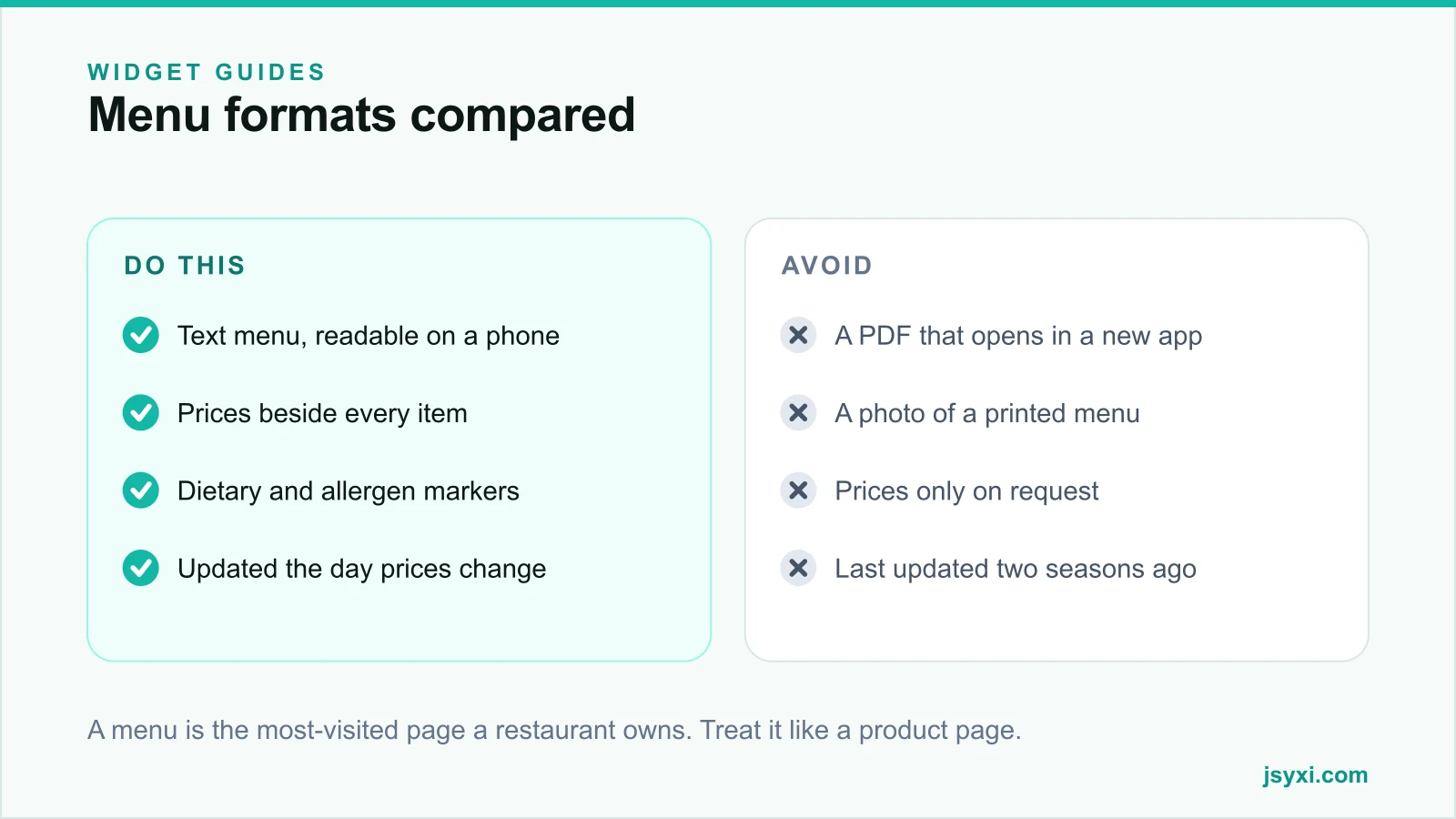
A PDF menu forces the visitor to download a file, wait, then pinch and drag around a page designed for A4 paper. A photographed menu is worse: the text is not selectable, not searchable, not translatable, and invisible to screen readers and search engines.
Both also make updates painful. When a price changes, someone has to open a design file, re-export, and re-upload. In practice that means the published menu drifts from the real one, and staff spend their evenings correcting customers.
A text menu fixes all of it: it loads instantly, reflows to any screen, can be read aloud, can be indexed, and can be edited in two minutes.
Step 1: Structure it the way people order
Group dishes the way a guest thinks about a meal, not the way your kitchen is organised:
- Starters, mains, sides, desserts, drinks
- Or by cuisine or counter if that is genuinely how you sell
- Keep the ordering consistent with your printed menu so regulars are not confused
- Put the section people came for near the top - for a bakery that is not the drinks list
Keep categories to a manageable number. Nine sections with four items each is harder to scan than four sections with nine.
Step 2: Write item descriptions that do work
Each item needs a name, a short description, and a price. The description should answer what the guest cannot see:
- The main components, so nobody has to ask
- Portion or piece count where it affects the decision
- Spice level, in words a first-time guest understands
- Preparation, where it distinguishes the dish
Two lines is plenty. A paragraph of adjectives per item makes the menu unreadable on a phone.
Step 3: Publish prices honestly
- Show a price for every item; "market price" should be rare and explained
- State whether taxes are included
- Disclose any service charge, packing charge, or minimum order clearly
- If delivery prices differ from dine-in prices, say so on the page rather than at checkout
- Mark items that are only available at certain times
Hidden charges discovered at the payment step are the single most common complaint in food ordering, and they are entirely avoidable on the menu page.
Step 4: Mark dietary and allergen information
This is a safety issue as much as a service one:
- Mark vegetarian, vegan, and egg-containing items clearly
- Note common allergens - nuts, dairy, gluten, shellfish
- Use a text label or a labelled icon, never colour alone
- Add a line telling guests to inform staff about allergies, because kitchens share equipment
- Never guess. If you cannot verify an item, say the information is unavailable
Step 5: Build it without touching your theme
The Restaurant Menu widget gives you a categorised menu with dishes, descriptions, and prices that you edit in a visual editor and embed with one line.
Set up:
- Sections in service order
- Item name, description, price, and dietary markers
- An availability flag for seasonal or sold-out items
- A note field for the tax and service-charge line
Place it with the embed snippet guide. Because the menu lives in your workspace, a price change is a two-minute edit rather than a redesign.
Step 6: Surround the menu with the decisions it triggers
A guest reading the menu is close to acting. Give them the next step on the same screen:
- Opening hours with a live open or closed state, using the Business Hours widget - see our guide to publishing hours
- A tap-to-call number for reservations
- A WhatsApp route for order enquiries
- Your address and a map with directions
- Photos of the signature dishes through a gallery
Step 7: Keep it current
- Assign one owner for the menu
- Update prices the day they change, not at the end of the month
- Mark seasonal items unavailable instead of deleting them, so returning guests are not confused
- Review the whole menu quarterly against what the kitchen actually serves
- Remove permanently discontinued dishes
An out-of-date menu creates disappointed guests at the table, which is the most expensive place to disappoint someone.
Common mistakes to avoid
- A PDF or photographed menu. Unreadable on a phone, invisible to search.
- Missing prices. Guests assume the worst and leave.
- Undeclared service charges. They become a complaint at the bill.
- Colour-only dietary markers. Inaccessible and easy to misread.
- No update owner. The published menu drifts from the real one.
Frequently asked questions
Should a restaurant menu be a PDF or a web page?
A web page. PDFs require a download, do not reflow on a phone, cannot be read by screen readers, and are far harder to keep updated. A text menu loads instantly and can be edited in minutes.
Should I show prices on my online menu?
Yes, for every item, with the tax position stated. Menus without prices lose bookings and orders, because guests assume the answer is expensive.
How do I show dietary information on a menu?
Use clear text labels or labelled icons for vegetarian, vegan, and common allergens, never colour alone, and add a line asking guests to inform staff of allergies since kitchens share equipment.
How often should I update the online menu?
The day anything changes. Assign one owner, and review the whole menu quarterly against what the kitchen actually serves.
Next steps
Type your current menu out as text, publish it with the Restaurant Menu widget, and put your hours, phone number, and directions on the same screen.
Start free and replace the PDF this week.