
Ideas for better growth
How to Add a Price Calculator to Your Website
Chris Content · · 5 min read

Give visitors an instant estimate instead of a quote form: how to design pricing inputs, show an honest range, and capture the lead without hiding the number.
"Contact us for pricing" is where a large share of qualified interest quietly dies. The visitor wanted a number, got a form, and went to a competitor who published one.
A price calculator solves this without forcing you to publish a rigid price list. It gives an honest, conditional estimate based on what the visitor actually needs, and it qualifies the enquiry before your sales team spends an hour on it.
When a calculator is the right tool
A calculator fits when price genuinely depends on a few knowable variables:
- Quantity, size, area, or weight
- Service tier or scope
- Duration or subscription length
- Add-ons and options
- Location, when delivery or travel affects cost
It does not fit when pricing depends on discovery you cannot automate - a bespoke software build, a complex migration, or anything where the honest answer is "it depends on things we have not discussed". In those cases, publish a starting price and a typical range instead, and be explicit that it is indicative.
Step 1: Model the pricing the way you actually quote
Sit with whoever writes quotes and write down the real logic:
- The base price and what it includes
- Which variables move the number, and by how much
- Minimum order values or minimum project sizes
- Where discounts kick in
- Taxes, delivery, and any charges that surprise people later
If two people on your team would quote the same job differently, fix that before automating it. A calculator that disagrees with your sales team costs more trust than it earns.
Step 2: Keep the inputs few and obvious
Every input is friction, and confusing inputs produce wrong estimates:
- Aim for three to six inputs
- Use the customer's vocabulary, not your internal terms
- Prefer choices over free text - sliders, steppers, and option cards
- Set sensible defaults so a result appears before anything is touched
- Explain any input that is not self-evident with a short helper line
A visitor who does not know their exact square footage will guess. Design for that: accept ranges, and say that the estimate assumes the value they entered.
Step 3: Show an honest number, with its assumptions
The output is where credibility is won or lost:
- Show a range when a range is the truth. A single precise figure you cannot honour is worse than a wide honest one.
- State what it includes and, just as importantly, what it excludes.
- Show the tax position. Whether a figure is inclusive of GST is not a detail.
- Update live as inputs change, so the visitor understands which choice drives the cost.
- Say it is an estimate, and say what would change it.
Never inflate the displayed number to leave discount room. A visitor who compares your estimate with your final quote and finds a gap will not come back.
Step 4: Build it without a developer
The Price Calculator widget lets you define inputs, rules, and the output format visually, then embed it on a page with one line. No formulas in code, no developer ticket every time a rate changes.
Practical setup:
- Group inputs in the order a customer thinks about them
- Show the running total near the inputs, visible without scrolling on a phone
- Add a clear next action beside the estimate
- Keep a version note so you know when rates last changed
Follow the embed snippet guide to place it on your pricing or service page.
Step 5: Capture the lead without holding the number hostage
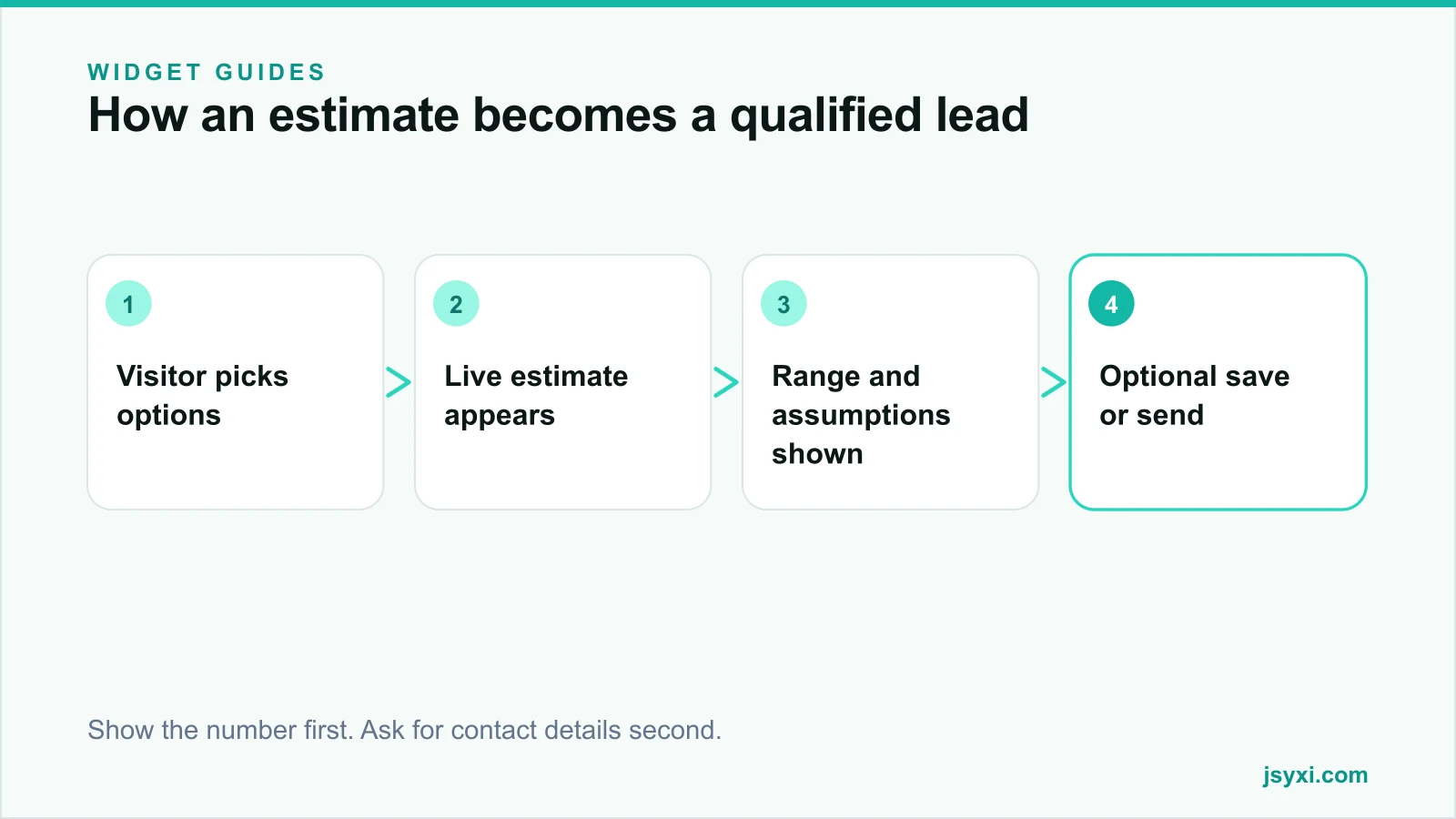
The strongest pattern is: show the estimate, then offer to save or send it.
- Display the result immediately, with no gate
- Offer "Email me this estimate" or "Send on WhatsApp" as a convenience, not a toll
- Pre-fill the message with the selected options so the follow-up conversation starts with context
- Route the submission into your lead queue with the inputs attached
Gating the number behind a form does increase form fills and decrease qualified conversations. You collect more addresses and close fewer deals. Our guide on lead capture best practices covers the trade-off in detail.
Step 6: Use the data
A calculator generates something a quote form never does: a record of what people are trying to buy, including the ones who never contacted you.
Track:
- Most-selected option combinations
- Where visitors abandon the calculator
- The gap between calculated estimates and final quoted values
- Which inputs correlate with deals that close
If most visitors configure something you barely sell, that is a product signal. If estimates consistently land below your final quotes, your model is wrong and your sales team is absorbing the difference.
Common mistakes to avoid
- Hiding the result behind a form. It converts worse and attracts unqualified contacts.
- False precision. A figure to the rupee on a project that will be re-scoped is not honest.
- Stale rates. Assign an owner and review quarterly, or after any cost change.
- Ignoring minimums. If you will not take a job under a threshold, say so in the result.
- No route to a human. Some estimates should end in a conversation; make that easy with a WhatsApp chat or a contact form.
Frequently asked questions
Should I show prices if my competitors do not?
Usually yes. Publishing an honest range filters out enquiries you would have rejected and wins the visitors who refuse to contact a business that hides its pricing. You can show a range rather than a fixed price.
What if my pricing is too complex for a calculator?
Then simplify what you show. Model the three or four variables that explain most of the variation, present the result as a range, and be explicit that a final quote follows a short conversation.
Should the estimate require an email address?
No. Show the number, then offer to email or message it as a convenience. Gating results collects more addresses but fewer serious buyers.
How often should I update the rates?
Review quarterly at minimum, and immediately after any input-cost change. Record the last-reviewed date internally so nobody has to guess whether the model is current.
Next steps
Write down how your team actually quotes, reduce it to the three or four variables that explain most of the price, and publish it with the Price Calculator widget. Show the number freely and offer to send it - the qualified conversations follow.
Start free and replace "contact us for pricing" this week.